What Is Graph Paper?
Graph paper is paper printed with a grid of evenly spaced squares. The grid provides horizontal and vertical guides at the same time, making it useful for drawing to scale, plotting data, working through math problems, and sketching layouts.
Unlike lined paper, which gives you rows for text, graph paper gives you a measurable grid. You can treat each square as one unit at whatever scale you need.
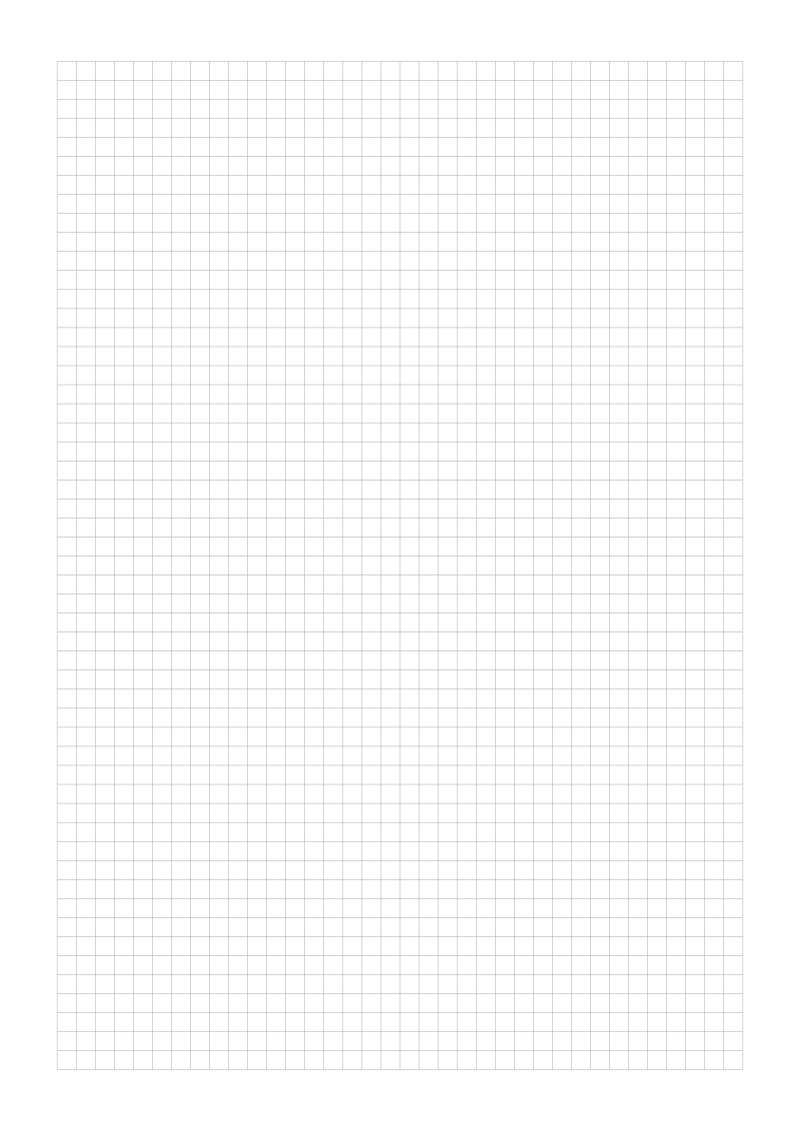
5mm Graph Paper: A Popular Choice
The 5mm grid is one of the most common graph paper sizes. It is used in school notebooks, engineering pads, and scientific notebooks.
At 5mm spacing, each square is small enough for technical sketches but large enough to write in comfortably. It is a versatile size for many kinds of work.
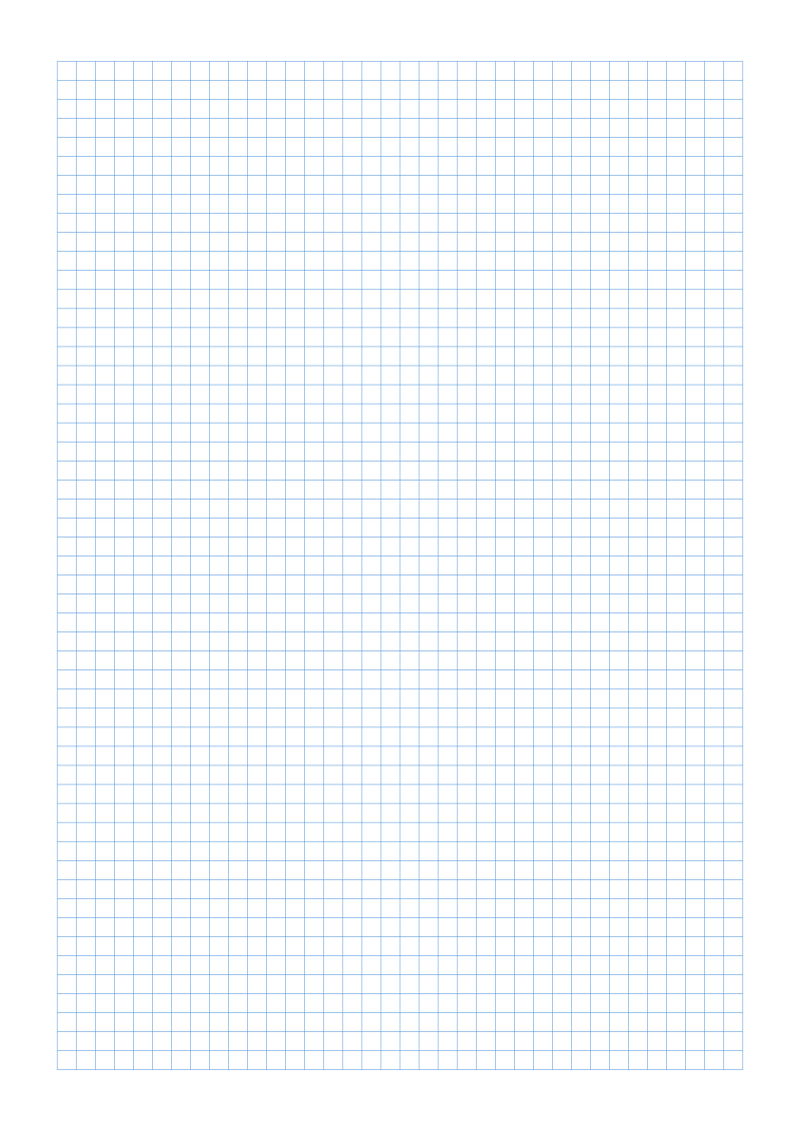
- Gray grid: neutral and works with most pens and pencils
- Blue grid: a classic choice for technical and engineering work
- Green grid: a lower-contrast option for long sessions
- Black grid: high contrast for dark, bold marks
Print at 100% scale (Actual Size), not Fit to Page. After printing, measure one square with a ruler to confirm it is exactly 5mm.
10mm Graph Paper (1 cm Grid)
The 10mm grid is twice the size of 5mm. It is useful for teaching younger students, for art and craft projects that need large cells, and for architectural sketches where each square can represent a real-world unit.
The larger cells leave plenty of room for labels, numbers, and freehand drawings.
2mm Fine Grid Paper
The 2mm grid is a fine grid for detail work such as circuit layouts, technical drawings, data recording, and miniature art. The squares are small, so most people use them as reference guides rather than writing inside individual cells.
A fine-tip pen (0.3mm or 0.5mm) keeps marks clear on a 2mm grid.
Graph Paper for Different Paper Sizes
The same grid spacing works across different paper sizes. Only the number of squares changes. PaperMe supports A4, A5, Letter, and A3.
- A4 (210 x 297 mm): a common international size under ISO 216
- A5 (148 x 210 mm): half of A4, good for pocket notebooks
- Letter (216 x 279 mm / 8.5 x 11 in): the standard US size
- A3 (297 x 420 mm): double A4, for large drawings and floor plans
Colored Grid Paper
Graph paper does not have to be gray or blue. Pink grid paper is a popular choice for journaling and bullet journal layouts. Lighter line colors keep the page visually quiet.
PaperMe includes a color picker for every template. You can enter a hex code if you need a specific brand color.

How to Print Graph Paper Correctly
Most print dialogs have a scaling option such as “Fit to Page” or “Shrink to Fit” enabled by default. This can shrink the page slightly, which changes the grid spacing. To get accurate squares, set the scale to 100%, Actual Size, or None and make sure the paper size in the dialog matches the document size.
- Export from PaperMe as PDF for the most accurate printing.
- Open the PDF in your viewer or browser.
- In the print dialog, set Scale or Page Sizing to Actual Size, 100%, or None.
- Print a test page and measure the grid before printing a large batch.
Measure 10 squares end-to-end. For a 5mm grid, they should span exactly 50mm. If they do not, check your printer’s scaling settings.
PDF vs PNG: Which Format to Download?
For printing, PDF is the more reliable choice. PaperMe’s PDF/Print pipeline places a rasterized full-page preview into a PDF whose MediaBox matches the selected document size. When you print at 100% and use the matching paper size, the grid spacing stays true to the template.
PNG is a high-resolution raster image that works well as a background layer in design software. SVG is a vector format that you can edit in drawing applications. Use PDF for direct printing; use PNG or SVG when you need the grid in another application.
Free to Use, No Account Required
All graph paper templates on PaperMe are free. There is no sign-up, email, or watermark. You can customize grid size, line color, margins, and paper size, then download as PDF, SVG, or PNG directly in your browser. You can also use the Print button to send a page to your printer without saving a file.
Use the Page Count field in the sidebar to generate a multi-page PDF, up to 200 pages in one download.
Try it in PaperMe Studio
Customize your template and download it free, with no account needed.